

Here's a social media calendar template you can open in the next thirty seconds: a CSV file, no email, no sign-up wall, no "download link" that actually leads to a pricing page. It comes pre-filled with real example rows for a salon and a boutique, so you're editing a working sheet, not staring at blank columns wondering what to type.
Key definition: A social media calendar template is a spreadsheet with columns for date, platform, content type, caption, and status, used to plan and track posts before they go live, instead of deciding what to post the same day you post it.
Preview the template
Eight columns, filled in for a salon (Bloom Salon) and a boutique (Bloom & Petal), two common ICP3 businesses this template is built for:
| Date | Day | Platform | Content Type | Caption/Hook | Hashtags | Status | Notes |
|---|---|---|---|---|---|---|---|
| 2026-07-20 | Monday | Instagram Reel | Behind-the-scenes | Opening up the salon, first cup of chai before the first client walks in | #SalonLife #BehindTheScenes | Posted | Bloom Salon example |
| 2026-07-21 | Tuesday | Instagram Post | Educational | 3 signs your hair colour is fading faster than it should (and the fix) | #HairCareTips #SalonTips | Scheduled | Bloom Salon example |
| 2026-07-23 | Thursday | Instagram Post | Product | New block-print kurti set just landed, three ways to style it | #BoutiqueFinds #BlockPrint | Posted | Bloom & Petal example |
| 2026-07-24 | Friday | Instagram Reel | Entertainment/trend | Trending audio adapted to a day-look-to-night-look styling switch | #OOTD #StyleSwitch | Draft | Bloom & Petal example |
It's a plain CSV. Open it directly in Excel, or in Google Sheets via File > Import > Upload (Google's own import guide covers the two-click process if you haven't done it before). Everything below explains what each column does and how to actually keep it filled in past week two.
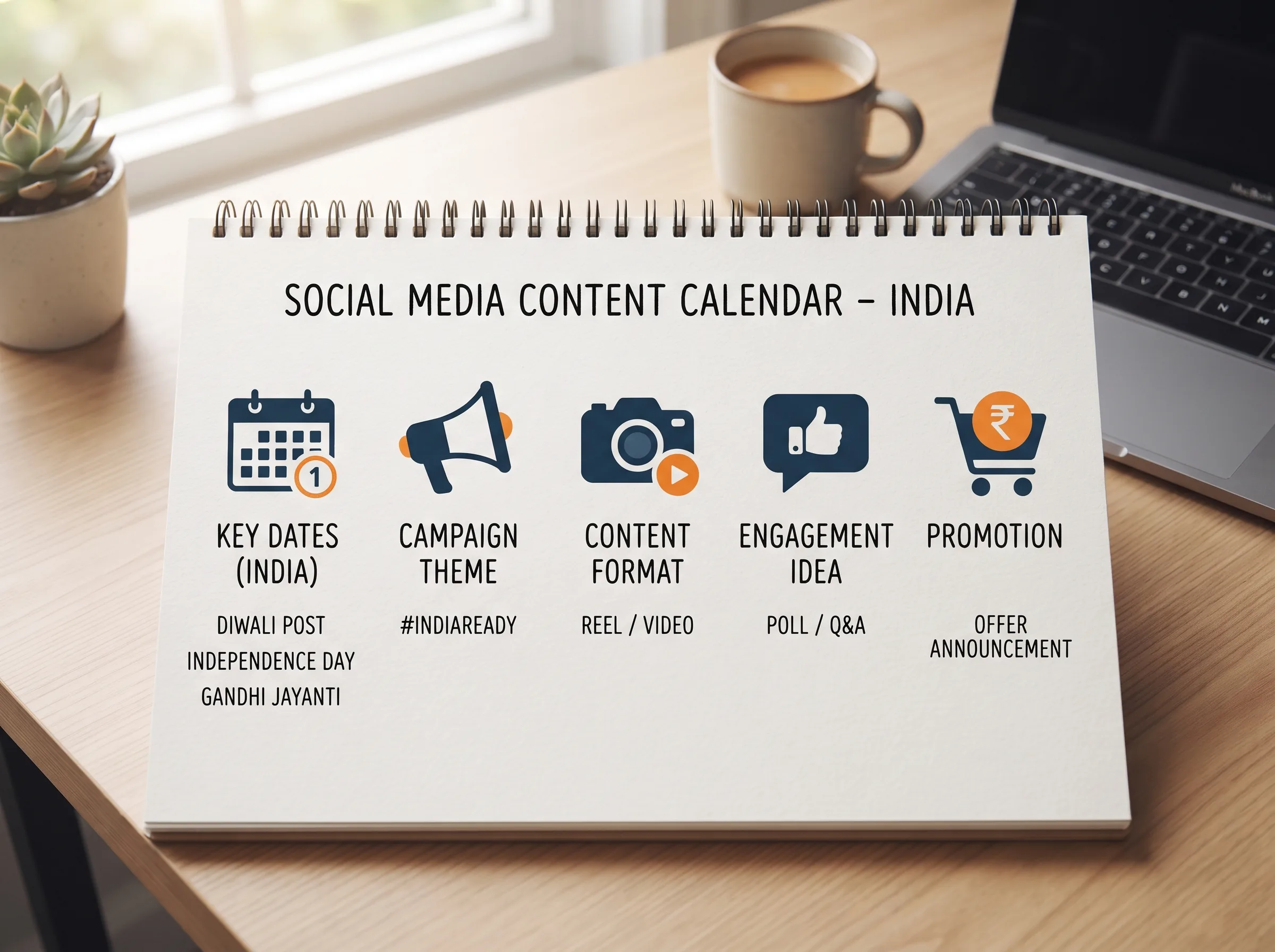
What's in the template (column by column)
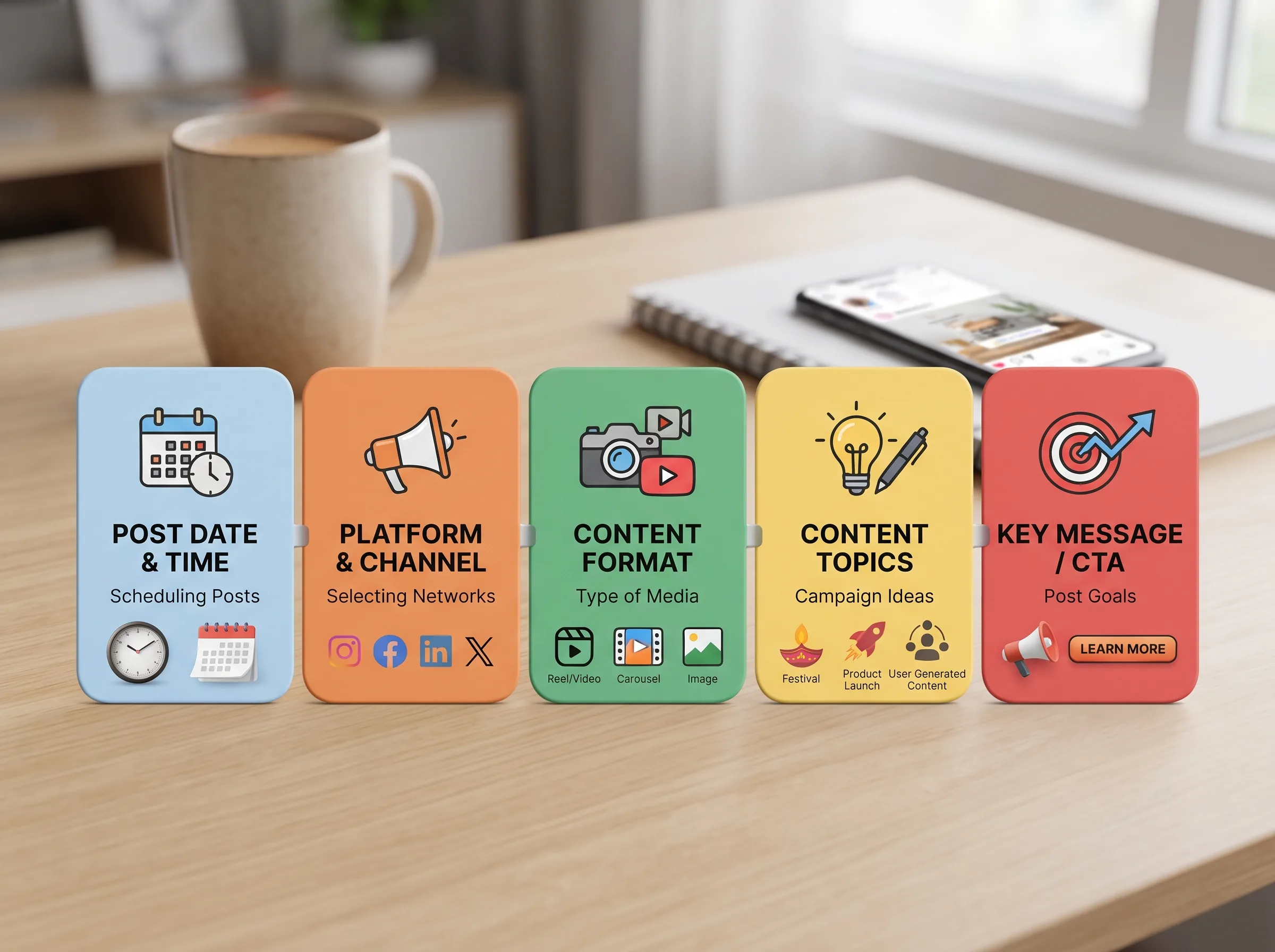
This is a content calendar template for social media built around eight columns, each one earning its place based on what actually breaks in a real posting workflow, not what looks good in a demo.
Date and Day sit together so you can plan by weekday pattern (educational on Monday, promo on Wednesday) instead of chasing a blank calendar every morning. Platform exists because most small businesses aren't posting to just one place anymore, an Instagram Reel and a WhatsApp Status update need different framing even from the same shoot. Content Type is the bucket (behind-the-scenes, educational, product, social proof, promotional, trend, community) that keeps you from posting five promos in a row without noticing. Caption/Hook is where you write the actual line, not a placeholder like "post about new stock", so future-you doesn't have to re-invent it on posting day. Hashtags keeps your rotating set in one place instead of retyping the same fifteen tags into every caption box.
Why a Status column matters
The single column most templates skip is Status: Posted, Scheduled, Draft, or Idea. Without it, a half-finished idea and a fully shot, ready-to-go post look identical in a flat list, and the ready one gets forgotten while you scramble for something new. Splitting Status into these four stages means you always know exactly what needs a caption, what needs a shoot, and what's already live, which is the actual difference between a sample social media content calendar that gets abandoned in a week and one that survives a busy month.
Notes is the catch-all: consent reminders for UGC reposts, "recheck trending audio," fabric-source questions, anything that would otherwise live in your head and disappear the moment you get busy.
Key insight: A calendar with a Status column tells you what's actually ready to post; a calendar without one just tells you what you meant to post, which is a very different (and much less useful) thing.
How to actually use this social media calendar template
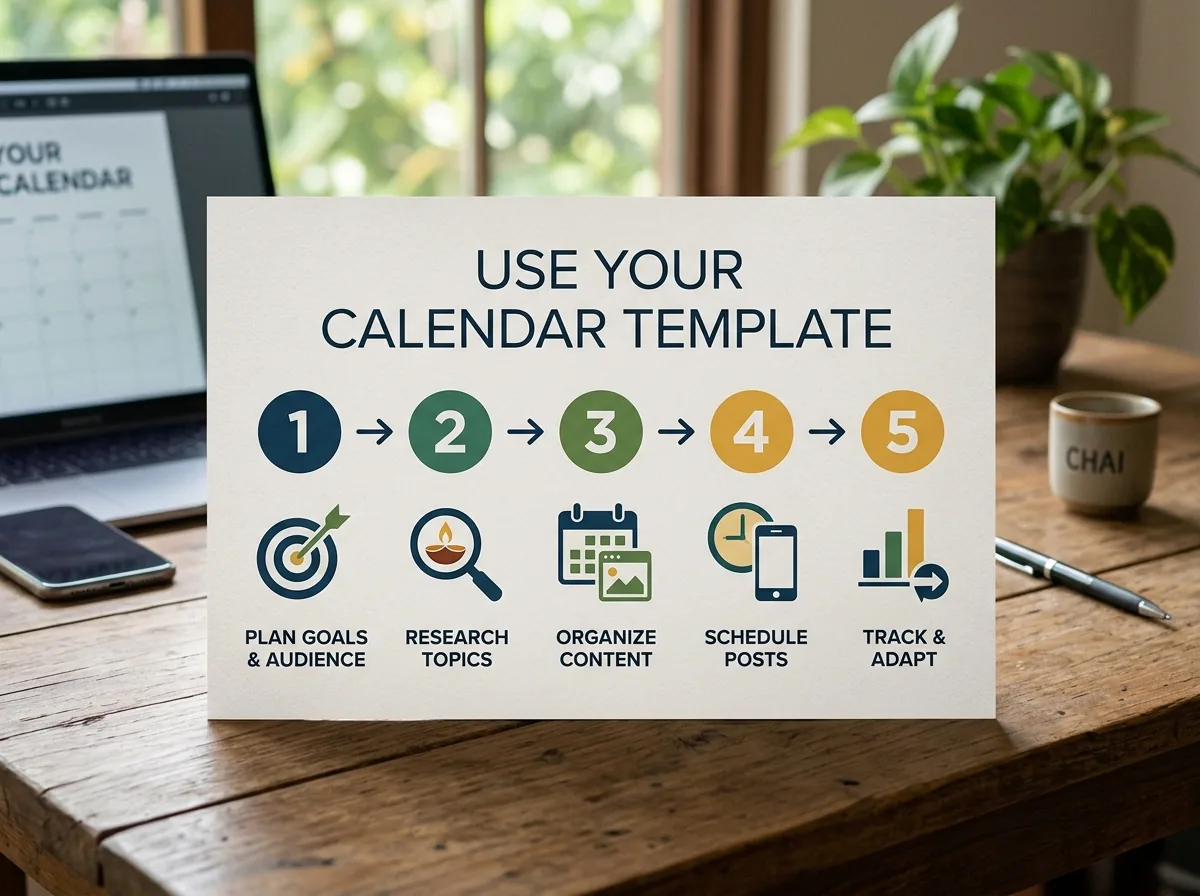
A social media calendar template only works if you fill it in a rhythm, not one row at a time under deadline pressure. A few habits make the difference between a sheet that survives and one that goes stale by week three.
Batch instead of daily-scrambling. Set aside one sitting a week (or once a month if you're consistent) to fill in a full week or two of rows at once, captions and hashtags included, rather than opening the sheet fresh every single morning. Separate by platform if you're running more than one. Sort or filter the Platform column so Instagram content and, say, a WhatsApp broadcast list don't get tangled into the same visual rhythm when they need different pacing. Keep a running Idea row. The moment a customer says something quotable or you notice a good process shot mid-shift, add a row with Status = Idea right then, so your Idea rows never run empty when you sit down to batch.
Use interactive stickers for the Community/engagement rows specifically. Instagram's own business guidance points to polls, Q&A stickers, and "this or that" prompts as some of the easiest ways to fill a Content Type = Community row without a shoot at all, just a phone and a caption. Add one of these into the weekly rotation instead of letting every slot default back to Product or Promotional.
If you're starting completely from scratch and want the full build-it-yourself process behind this template, our step-by-step guide to creating a social media calendar walks through it end to end.
Adapting it for a salon
Bloom Salon's filled rows show the pattern: a behind-the-scenes opener (the chai-before-opening shot), a quick educational tip that builds trust ("3 signs your hair colour is fading"), and a wedding-season promo with urgency ("6 slots left this week"). A Jaipur salon runs the same three-post rhythm around its own wedding-season calendar, just swap the festival or event name for whatever books out chairs locally.
Adapting it for a boutique
Bloom & Petal's rows lean product-first: a new-arrival post styled three ways, an unboxing Story, a trend-audio Reel, and a limited-stock countdown. If you're also listing on Meesho or Myntra alongside Instagram, add a row type for size-and-fit content, it answers the single biggest hesitation a buyer has before checkout on a marketplace listing.
When a spreadsheet stops being enough
A template solves the planning half of the problem: what to post, when, on which platform. It doesn't solve the other half, a row that says "Content Type: Product, Status: Idea" still needs an actual photo, a caption written from scratch, and someone free enough on posting day to actually publish it. That gap, between a planned row and a finished post, is where most small business calendars quietly fall behind, not from lack of ideas but from lack of hands to execute them.
This shows up the same way for a salon in Bangalore and a boutique in Surat: the calendar says Wednesday is a product post, but Wednesday morning the person who was supposed to shoot it is fully booked with clients, or the new stock hasn't been photographed yet, or the person who usually writes captions is out sick. The row sits at Status = Idea for another week, then another, until the whole rhythm the template was supposed to create quietly stops. A better calendar doesn't just track that gap, it closes it.
Turn this calendar into a content calendar
Scalio turns a product photo and a brand brief into model-wearing photos and Reels in minutes, then drops them straight into an AI-filled social media content calendar, so a row in this template becomes a finished, scheduled post instead of a blank cell waiting on a photographer. It starts at ₹999/month for 100 credits, against a ₹10,000+ monthly agency retainer doing the same planning-plus-shooting work. Fill in this week's rows from the template above, then see what it looks like when the Idea rows fill themselves: see how it works →
Once your rows are planned, pair the calendar with a running content idea bank so the Caption/Hook column never runs dry, and check the best time to post on Instagram so the Date and Day columns line up with when your audience is actually online.
Frequently Asked Questions
Is this social media calendar template really free?
Yes. It's a plain CSV file, no email required and no sign-up wall. Click the download link above, and it opens directly in Google Sheets (File > Import > Upload) or Excel (just double-click it).
How many posts should I plan per week using this template?
Three to five rows a week is a realistic cadence for most small businesses, mixing content types rather than repeating the same one. Filling in one week at a time keeps the sheet from feeling like a full-month commitment.
Can I use this template for more than one platform?
Yes, that's exactly why the Platform column exists. Add a row per platform per post (an Instagram Reel and its cross-posted Facebook version can be two rows, or one row if you post identically to both) and sort by Platform when you want to review just one channel.
What's the difference between this template and Scalio's AI content calendar?
This CSV tracks the plan: what to post, on which day, on which platform. Scalio's AI calendar goes a step further and generates the actual photo, Reel, or caption for each planned slot, so a Status = Idea row doesn't sit empty waiting for someone to shoot it.
Do I need separate tabs for each social platform?
Not necessarily. The Platform column lets you keep everything in one sheet and filter by platform when you need a single-channel view. Split into separate tabs only once the row count gets unwieldy, most small businesses posting three to five times a week across one or two platforms never hit that point.